Set up IPTV on a Samsung Smart TV (Tizen)
 By Théo Renard, Live Sport & PPV Streaming Editor Last updated
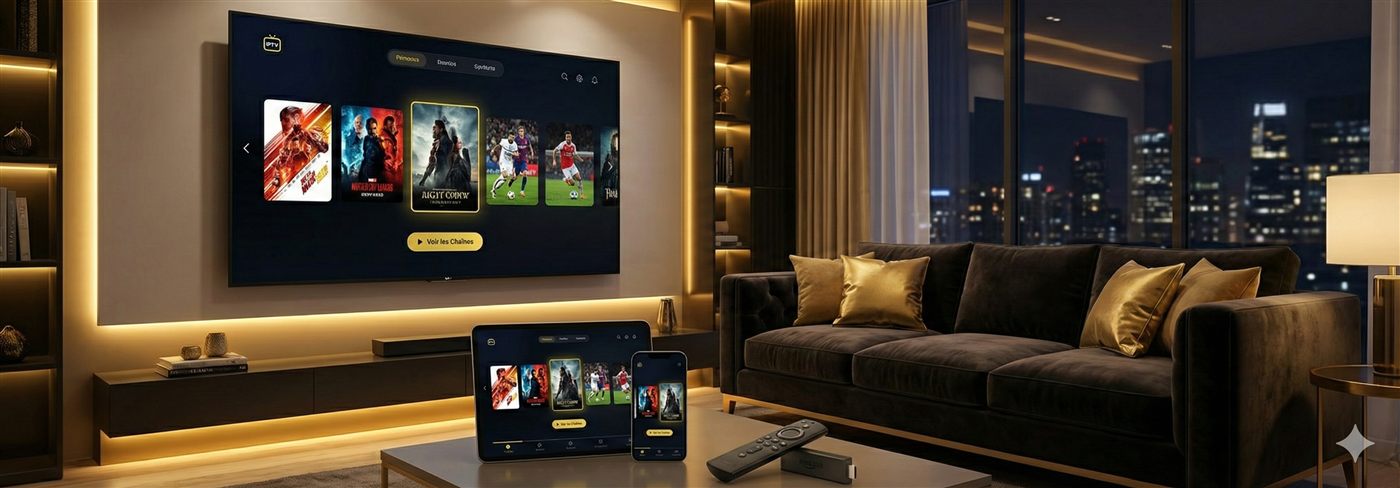
A modern Samsung needs no extra hardware for IPTV — it runs everything through a Tizen app. Install a player from Samsung Apps, sign in with the login we send, let the channels and guide populate, and you're watching in about five minutes. The one step worth not skipping: wire the TV up so a title fight doesn't freeze at the walkout.
- Samsung Apps → install a Tizen player → sign in. No box needed.
- Player missing from your store? A Tizen alternative takes the same login — just ask.
- For a main event that holds, use Ethernet, not Wi-Fi.
Before you start
- A Samsung running Tizen (roughly 2017 or newer).
- A steady line — ~10 Mbps for HD, 25 Mbps-plus for 4K; wired if there's a big card coming.
- Your login: an Xtream Codes set or an M3U link — we send both.
- About five minutes.
Steps
- Hit Home and open Apps — Samsung's built-in store.
- Search for a Tizen IPTV player (IPTV Smarters where it's listed) and install it.
- Open it and sign in with your Xtream Codes login, or add your M3U link.
- Let the channels and the TV guide sync — the first pass can take a minute.
- Group your favourites — sport and your home channels up top — and start watching.
Which app on Tizen?
Samsung curates its store by country and model year, so the exact players on offer differ from set to set. IPTV Smarters is the usual pick where it appears; where it doesn't, a comparable Tizen player does the identical job on the same credentials. Not sure which your TV supports? Tell us the model and we'll name one that installs.
Wire it before the walkout Most Samsungs have an Ethernet port on the back — use it. A cable removes the single most common reason a main event freezes; if you truly can't reach one, force 5 GHz Wi-Fi and keep the router in sight of the TV.
Do you need a box?
On a current Samsung, no — the app is enough. A streaming box only helps on older or store-limited sets, where a Fire Stick or Android box in any HDMI port opens up a wider choice of players.
If something's off
- App not in the store — a country/model-year quirk; ask us for a Tizen substitute.
- Buffering — wire it, update the firmware, check your speed; full list in fix buffering.
- No guide — give the EPG a minute on first launch, or see fix the EPG.
- App lags or closes — restart the TV and clear out apps you don't use to free memory.
Frequently asked questions
Which player runs on a Samsung TV?
Samsung uses Tizen, so you need a Tizen player — IPTV Smarters where your regional store lists it, otherwise a compatible substitute we'll name for your model. Same login either way, so switching apps never means switching subscription.
Do I need a box for a Samsung TV?
No — a modern Samsung plays IPTV straight from an app. A Fire Stick or Android box only earns its place if the set is old or its store is missing a working player.
The app isn't in my Samsung store — now what?
Samsung shuffles which players it lists by country and model year. Message us and we'll point you to a Tizen player that installs on your exact set — no change to your plan.
Why does my Samsung stutter on a big night?
The connection, nearly always. Run a cable to the TV, keep the firmware current, and check your speed — the ordered checklist is in our buffering guide.
Will an older Samsung cope?
Tizen sets from roughly 2017 on handle IPTV apps well. On much older models a €45 Fire Stick is the smoother route than fighting the built-in store.
A modern Samsung plays IPTV natively — Tizen player, your login, done. Wire it for the big nights, point it at a subscription that holds at peak, and we'll walk the setup with you on WhatsApp, free.